How to Undo or Remove a Link on Instagram Bio?
Considering removing a link from your Instagram bio, but unsure where to start or if it’s even necessary? If a potential client clicks your bio link, and ends up on a broken page, outdated offer, or worse, somewhere totally irrelevant.
That tiny link holds big power. It’s often the first (and sometimes last) impression you make online. So why leave it outdated, broken, or pointing to the wrong place?
This guide will show you exactly how to take back control and how to undo or remove a Link on Instagram Bio. Let’s make sure your Profile always works for you, not against you!
How to Remove a Link from Your Instagram Bio Links in your Instagram?
Your Instagram bio link serves as a crucial gateway, directing your audience to your website, online store, YouTube channel, or any other platform. The need to change, update, or even remove it is a common requirement for users, especially for businesses and content creators.
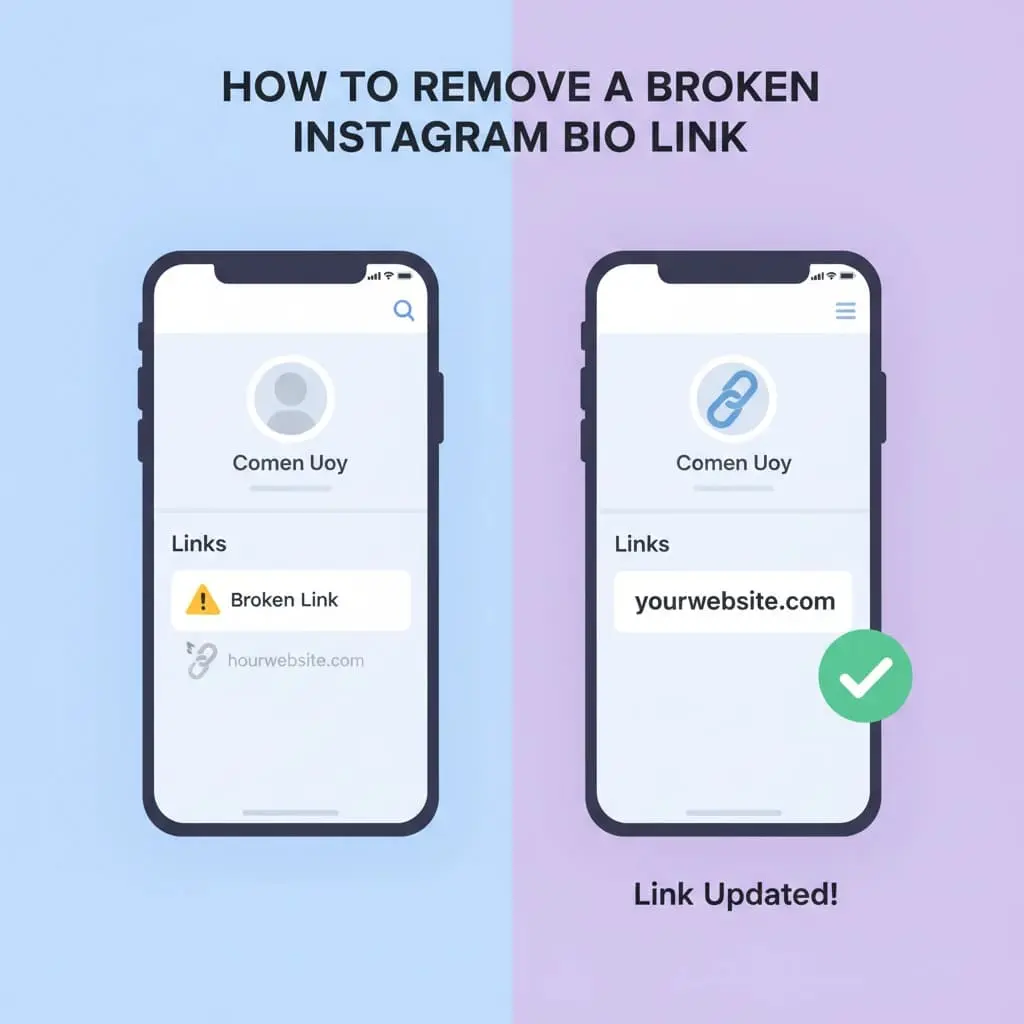
This section aims to educate and guide you step-by-step on how to change or undo a link on your Instagram bio, along with best practices for managing these vital links.
- Access Your Profile: Open the Instagram app and tap on your profile icon (that little profile picture in the bottom-right corner of your screen) to head over to your personal profile page.
- Select “Edit Profile”: On your profile page, find and tap the “Edit Profile button on Instagram.” It’s usually right below your profile picture and bio information, and it’s your gateway to profile settings.
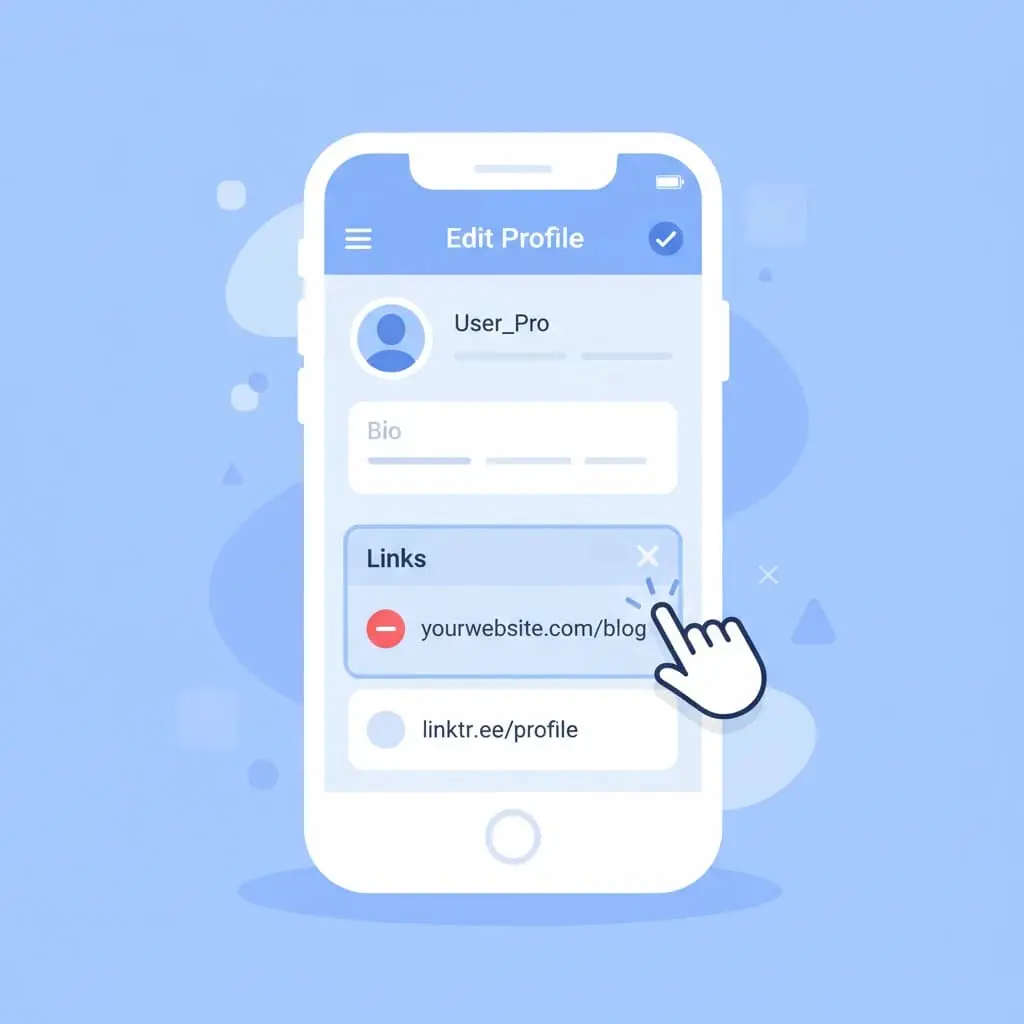
- Manage Links: Within the “Edit Profile” screen, you’ll spot an option called “Links.” Give it a tap. This is your central hub for managing all your links, whether they’re external sites or connected to Facebook.
- Choose the Link to Remove: You’ll see a list of the links currently in your bio. Select the specific link you intend to delete (it could be an Instagram website link or a Facebook link).
- Remove the Link: After selecting the link, an option to “Remove Link” will pop up. Tap on it.
- Confirm Deletion: A confirmation message will appear, double-checking if you’re sure you want to remove the link. To finalize the process, simply select “Remove.”
- Save Changes: This is crucial! After removing the link, make sure to save your changes by tapping “Done” (on iOS) or the checkmark icon (on Android) in the top-right corner of the screen.
If you need to edit the Instagram bio link or update an existing one, instead of deleting it, you can simply tap on the current link within the “Links” section and type in the new address. This method is incredibly useful for editing your Instagram profile and keeping your link content fresh.
How to Remove Your Profile Link from Someone Else’s Bio?
Sometimes, your Instagram profile might get linked in someone else’s bio. While it can be a helpful way to promote, it can be a disadvantage if a fake or spammy profile links to your account. To unlink the website on Instagram when it’s your profile link appearing in someone else’s bio, here’s what to do:
- Search for the Page: Launch Instagram, use the search bar to find the page that has your account mentioned in their bio.
- Tap Your Username: Once on their Profile, tap directly on your username (the clickable link) within their bio.
- Select “Remove Link”: A small pop-up window will appear at the bottom of your screen, offering an option to “Remove Link.” Tap it.
- Confirm Removal: Confirm your decision to undo a link on your Instagram bio when prompted.
Pay attention that optimizing your bio and managing links ensures your profile is effective. Additionally, using turbodownloader Instagram downloader tools can help you archive the favorite posts or Reels for offline reference.”
Why Can’t I Remove a Link on Instagram Bio?
While removing a link from your Instagram bio is usually a breeze, you might occasionally hit a snag. Here are a few common reasons why you might struggle to remove website or other links:
- App Glitch: Sometimes, the Instagram app might just be having a moment with a temporary bug. Try closing and reopening the app, or even giving your device a quick restart.
- Outdated App Version: Make sure your Instagram app is up-to-date. Older versions can sometimes cause functionality issues. Just check your app store for any available updates.
- Internet Connection Issues: A spotty or unstable internet connection can definitely prevent your changes from saving properly. Double-check that you have a strong connection.
- Instagram Server Issues: On rare occasions, Instagram’s own servers might be experiencing hiccups. If that’s the case, it’s best to just wait a bit and try again later.
- Specific Link Types: Very, very occasionally, some integrated links (like certain third-party service connections) might behave a little differently, but generally, external and Facebook links are managed the same way.
If you’ve tried these solutions and still can’t remove your link, it might be time to reach out to Instagram’s support team for further assistance.
Key Tips for Managing Your Instagram Bio Links
Effectively managing your Instagram bio, including its links, is essential for a strong online presence.
By keeping the following tips about undo or removing a link on Instagram Bio in mind, you can ensure your profile information is always accurate, efficient, and engaging:
- Undo a link on Instagram bio: The process to remove a link from your bio is entirely within your control and easily done through your profile settings.
- Instagram bio link settings: Removing or updating your Instagram bio link is always done from the “Edit Profile” menu, quick and easy, whenever you need.
- Instagram bio tutorial: This guide helps you become fully familiar with the process of managing your links.
- Instagram bio customization: The ability to add, remove, or edit links is a vital part of personalizing your bio.
- Instagram account settings: Accessing “Edit Profile” is done right through your overall account settings.
- Instagram clickable link: Always ensure your link is correctly formatted so it’s easily clickable for your audience.
- Update Instagram bio: Whenever you need to make changes to your link or any other bio information, this is the path to take.
- Instagram personal info: While links are in their own specific section, they’re still considered part of your public profile information that’s visible to your audience.
finally
Understanding and mastering how to undo or remove a link on an Instagram Bio and manage it is an essential skill for any Instagram user.
This flexibility, whether you remove your website from Instagram or replace it, gives you complete control over how your audience interacts with your content and helps maintain your Profile’s credibility.
What do you think? Do you know any tips or tricks for better Instagram link management that weren’t mentioned here? What challenges have you faced in the past with how to delete a link in an Instagram bio? Do you have any suggestions or questions about this topic that we should address in future articles?
